Convert a bank statement PDF to Excel for free: three ways.
From the slowest to the fastest, with what each one gets wrong, so you can pick before you start.
Drop your statement PDF
Chase, Bank of America, Wells Fargo, TD Bank and other banks (generic reader)
Several months? Select them together: you also get a month-to-month check.
OFX, the QuickBooks CSV and the Xero CSV are for accounting software that imports bank files, and are offered only when the statement balances to the cent. We test-imported the OFX and the QuickBooks CSV into GnuCash (free accounting software): every row, date, sign and the closing balance came out as on the statement. The QuickBooks CSV follows Intuit's published three-column layout (Date, Description, Amount); the Xero CSV has the columns Xero's help page describes (Date, Amount, Description, Cheque number; money out negative; no balances). GnuCash is not QuickBooks or Xero, we have not tried those two, and the Xero CSV has not been imported into Xero by us.
Tested in Microsoft Excel for Windows and Google Sheets (Excel for the web: not tested yet).
One workbook: a Chain proof sheet (live formulas: each month balances, and closing = next opening) and every transaction in one table.
Chase, Bank of America, Wells Fargo and TD Bank: tested on synthetic statements in their layouts and on the sample statements Wells Fargo and TD Bank publish, not yet on customer statements. U.S. Bank and Citi: no official sample exists that we could find, so they use the generic reader. Every file shows whether it balanced. How we test
1. Copy and paste
Select the table in the PDF, copy, paste into Excel. It costs nothing and works for one short statement. It usually puts date, description and amount in one cell, wrapped descriptions on separate rows, and it is easy to miss a page. Expect to split columns with Text to Columns and to check the total yourself.
2. Excel's Get Data from PDF
Recent versions of Excel can read a PDF: on the Data tab choose Get Data, From File, From PDF, then pick the table Excel finds. It is free if you already have Excel and keeps the file on your computer. It treats each table as a separate import, so statements that run over several pages arrive in pieces you have to append, and it does not tell you whether a row was dropped.
3. A converter that checks the total
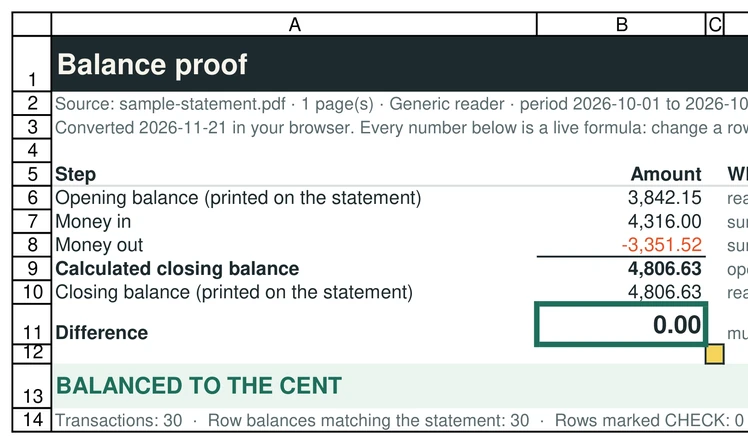
SheetProof Convert reads the PDF in your browser, builds one clean table, and adds every transaction to the opening balance to compare it with the closing balance. The Excel file has a Proof tab of live formulas, so the check travels with the data. It is free for 10 pages a day and reads scanned statements only with an experimental OCR that you must check row by row.
Whichever method you use, do the same final check: opening balance plus all transactions must equal the closing balance on the statement.
Questions
Which free method is the most accurate?
The one you can check. Any method is fine if you compare the final total with the statement. Methods 1 and 2 leave that check to you; method 3 does it for you and says which row to look at.
Do these work on scanned statements?
Best fix: download the statement again from online banking as a digital PDF. If you only have a picture, SheetProof Convert has an experimental OCR that runs on your device and tells you to check every row; the converters that sell OCR as a main feature are more mature.
Is it safe to use an online converter for a bank statement?
Many upload your file to their servers. Prefer one that reads the file in your browser, and verify it with the Wi-Fi test: load the page, switch off Wi-Fi, convert.